响应式布局:解决图片和按钮在浏览器缩放时位置错乱的问题
本文旨在解决网页在不同屏幕尺寸或浏览器窗口缩放时,图片和按钮等元素位置发生错乱的问题。通过使用`display: block`、`max-width: fit-content`、`margin: auto`以及`max-width: 100%`和`height: auto`等CSS属性,实现按钮居中显示,并确保图片在缩放时保持比例,避免超出容器范围。
在网页开发中,响应式设计至关重要。它确保网页在各种设备和屏幕尺寸上都能提供良好的用户体验。一个常见的问题是,当浏览器窗口缩放时,页面元素(如图片和按钮)的位置可能会发生错乱,导致布局混乱。以下介绍如何使用CSS来解决这个问题。
按钮居中显示
默认情况下,标签是内联元素,其宽度仅取决于其内容。这会导致按钮周围的空白区域不一致,尤其是在图片旁边时。为了解决这个问题,可以将标签设置为块级元素,并使用max-width: fit-content和margin: auto来实现按钮的居中显示。
a {
  display: block; /* 使<a>标签占据整行 */
  max-width: fit-content; /* 宽度适应内容 */
  margin: auto; /* 左右自动外边距,实现居中 */
}- display: block: 强制元素表现为块级元素,使其占据父容器的整个宽度。
- max-width: fit-content: 限制元素的最大宽度,使其宽度适应其内容(即按钮的宽度)。
- margin: auto: 水平居中元素,因为它现在是一个块级元素,并且有固定的宽度。
图片响应式处理
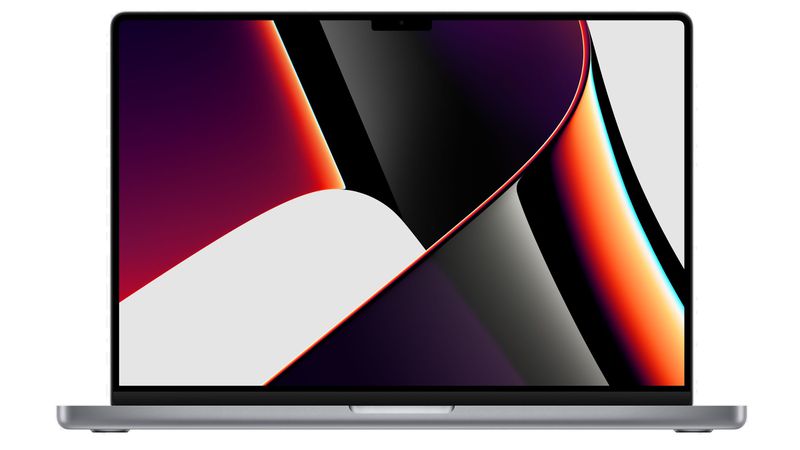
为了确保图片在不同屏幕尺寸下都能正确显示,需要使其具有响应性。这可以通过设置max-width: 100%和height: auto来实现。
.picture {
  margin-top: 50px;
  max-width: 100%; /* 图片最大宽度为父容器的100% */
  height: auto; /* 高度自动调整,保持比例 */
}- max-width: 100%: 确保图片的最大宽度不超过其父容器的宽度。当浏览器窗口缩小时,图片也会相应地缩小。
- height: auto: 允许浏览器自动调整图片的高度,以保持其原始宽高比。这避免了图片变形。
完整示例代码
下面是结合了上述两种技术的完整示例代码:
 AI社交封面生成器
一句话/一张图一键智能生成社交媒体图片的AI设计神器
 108
查看详情
108
查看详情

HTML:
<html align='center'>

<body>
  <p class='new'>New</p>
  <h2 class='macbook'>MacBook Pro</h3>
    <h1 class='supercharged'><span class='charged'>Supercharged</span> for pros.</h1>
    <p class='price'>From $1999</p>
    <a href="/text.html"><button class='button'>Buy</button></a>
    @@##@@
</body>

</html>
CSS:
body {
text-align: center; /* 使body内的元素居中 */
}
.new {
font-family: Arial;
color: rgb(202, 137, 15);
font-size: 18px;
margin-bottom: 15px;
}
.macbook {
font-family: Arial;
font-weight: bold;
font-size: 44px;
margin-top: 0px;
margin-bottom: 10px;
}
.supercharged {
font-family: Arial;
font-weight: bold;
 font-size: 60px;
margin-top: 0px;
margin-bottom: 25px;
}
.price {
font-family: Arial;
font-size: 18px;
margin-top: 0px;
}
.button {
background-color: #007aff;
color: white;
border-radius: 100px;
font-weight: bold;
border: none;
padding-left: 16px;
padding-right: 16px;
padding-bottom: 10px;
padding-top: 10px;
position: 50px;
}
.button:hover {
opacity: 0.8;
}
.button:active {
opacity: 0.5;
}
.charged {
color: plum;
text-decoration: underline;
}
.picture {
margin-top: 50px;
max-width: 100%;
height: auto;
}
a {
display: block;
max-width: fit-content;
margin: auto;
}
font-size: 60px;
margin-top: 0px;
margin-bottom: 25px;
}
.price {
font-family: Arial;
font-size: 18px;
margin-top: 0px;
}
.button {
background-color: #007aff;
color: white;
border-radius: 100px;
font-weight: bold;
border: none;
padding-left: 16px;
padding-right: 16px;
padding-bottom: 10px;
padding-top: 10px;
position: 50px;
}
.button:hover {
opacity: 0.8;
}
.button:active {
opacity: 0.5;
}
.charged {
color: plum;
text-decoration: underline;
}
.picture {
margin-top: 50px;
max-width: 100%;
height: auto;
}
a {
display: block;
max-width: fit-content;
margin: auto;
} font-size: 60px;
margin-top: 0px;
margin-bottom: 25px;
}
.price {
font-family: Arial;
font-size: 18px;
margin-top: 0px;
}
.button {
background-color: #007aff;
color: white;
border-radius: 100px;
font-weight: bold;
border: none;
padding-left: 16px;
padding-right: 16px;
padding-bottom: 10px;
padding-top: 10px;
position: 50px;
}
.button:hover {
opacity: 0.8;
}
.button:active {
opacity: 0.5;
}
.charged {
color: plum;
text-decoration: underline;
}
.picture {
margin-top: 50px;
max-width: 100%;
height: auto;
}
a {
display: block;
max-width: fit-content;
margin: auto;
}
font-size: 60px;
margin-top: 0px;
margin-bottom: 25px;
}
.price {
font-family: Arial;
font-size: 18px;
margin-top: 0px;
}
.button {
background-color: #007aff;
color: white;
border-radius: 100px;
font-weight: bold;
border: none;
padding-left: 16px;
padding-right: 16px;
padding-bottom: 10px;
padding-top: 10px;
position: 50px;
}
.button:hover {
opacity: 0.8;
}
.button:active {
opacity: 0.5;
}
.charged {
color: plum;
text-decoration: underline;
}
.picture {
margin-top: 50px;
max-width: 100%;
height: auto;
}
a {
display: block;
max-width: fit-content;
margin: auto;
}总结
通过以上方法,可以有效地解决图片和按钮在浏览器缩放时位置错乱的问题。display: block、max-width: fit-content和margin: auto的组合使得按钮能够居中显示,而max-width: 100%和height: auto则确保图片在不同屏幕尺寸下都能保持比例并正确显示。这些技巧是构建响应式网页的重要组成部分。 在实际开发中,应根据具体需求调整CSS样式,以达到最佳的视觉效果。
以上就是响应式布局:解决图片和按钮在浏览器缩放时位置错乱的问题的详细内容,更多请关注其它相关文章!
热门内容推荐






快捷栏目导航